Policies
ScaleOps Replicas Optimization uses policies to control how HPA workloads are optimized. Policies define the strategy for setting minimum replicas, prediction behavior, and optimization thresholds.
HPA Policy
General
-
Min Replicas- set the minimum replicas recommendation strategy and boundary.Min replicas strategy:Set history based for all workloads- Use the historical data to set the min replicas for all workloads.Set history based for predictable workloads- Use the historical data to set the min replicas for predictable workloads. Static workloads will keep the original HPA min replicas value when selecting this option.Set history based for static workloads- Use the historical data to set the min replicas for static workloads. Predictable workloads will keep the original HPA min replicas value when selecting this option.Set min replicas for all workloads- Set a constant min replicas for all workloads assigned with the policy.Keep min replicas for all workloads- Use the original HPA min replicas value for all workloads. This option enables the use of prediction ahead of time scaling inclusively, without using the min-replica recommendation. Note that the defined boundary is respected when using this option.
Min replica boundary- Ensure that the min replicas are not set below the defined value.Min replicas headroom- Add a safety buffer to your minimum replicas. This helps ensure you have extra capacity for unexpected traffic spikes. Applies to both predictable and static workloads. Advanced users can set different values for each workload type by editing the policy custom resource, with the UI showing predictable workload values if they differ. Available in v1.15.4+
-
Max replicas- Set the maximum amount of replicas. -
Required history for optimization- HPA optimization will be applied after gathering the minimum required historical data.

Predictable Workloads
Prediction- By enabling prediction, ScaleOps identifies workloads as predictable, and increase the amount of replicas ahead of the predicted peak.Look ahead duration- Set the duration to look ahead for the prediction.
Min Replicas- For workloads identified as predictable, select the desired percentile from historical usage data to determine the minimum number of replicas. It is recommended to use the 80th percentile to take full advantage of the prediction feature and maximize cost savings. Note that this option can be disabled, based on the selected strategy on the General tab.

Static Workloads
Min Replicas- For static workloads, select the desired percentile from historical replicas data to determine the minimum number of replicas. Note that this option can be disabled, based on the selected strategy on the General tab.

Threshold (beta) Available in v1.30.18+
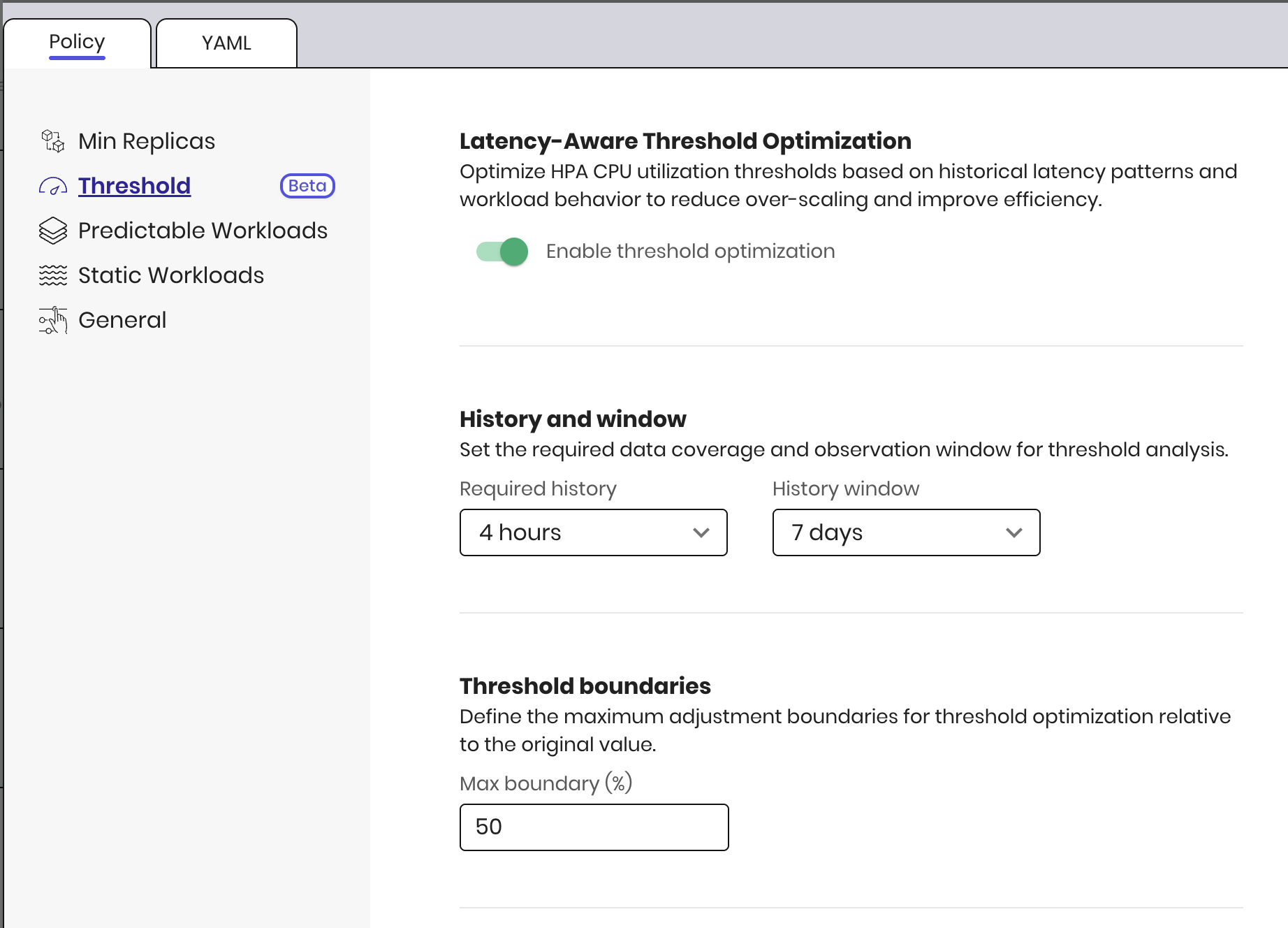
The Threshold tab controls Replica Threshold Optimization. It optimizes HPA CPU utilization thresholds based on historical workload behavior to reduce over-scaling and improve efficiency.
- Enable threshold optimization — Turn threshold optimization on or off for workloads assigned to this policy.
- History and window — Set the required data coverage and observation window for threshold analysis.
Required history— Minimum amount of historical data ScaleOps must collect before applying a threshold recommendation.History window— Time range used to analyze latency and CPU behavior when calculating the threshold.
- Target latency — Set a custom latency target for the policy. A stricter (lower) target keeps the threshold closer to the original value; a looser (higher) target allows more aggressive optimization. When not set, ScaleOps uses its default p99 latency target. Available in v1.32.5+
- Threshold boundaries — Define the maximum adjustment boundaries for threshold optimization relative to the original value.
Max boundary (%)— Limits how far the recommended threshold can deviate from the workload’s original CPU threshold.
- Auto-healing — React to latency and error rate anomalies to ensure threshold optimization remains performance-aware.
Schedule Policies Available in v1.26.22+
Schedule Policies allow you to automatically switch HPA replica policies by time periods (business hours, nights, weekends, peak periods). This enables you to apply different optimization strategies during specific time windows, optimizing resource usage based on predictable workload patterns.
Overview
Policy Schedule lets you pick a Default Policy and add ordered Override Policies (policy + days + time range). Rules are evaluated top to bottom; the first match wins. Times are specified in UTC. Time ranges may span midnight (e.g., 22:00–06:00).
Creating a Schedule Policy
- Navigate to the Policies page under Replicas Optimization
- Click Create new policy
- Select Policy Schedule
- Configure the schedule policy as described below
Schedule Policy Configuration
Default Policy
The default policy is applied to all attached workloads during times that are not covered by any override rules.
Override Rules
Override rules allow you to define specific time periods during which a different policy should be applied. You can add multiple override rules, each specifying:
- Policy: The policy to apply during this time period
- Days: Days of the week when this rule applies (e.g., Monday-Friday, Weekends, Every day)
- Time Range: The time period in UTC (e.g., 10:00–10:59, 22:00–06:00)
Important Notes:
- Rules are evaluated in order from top to bottom
- The first matching rule wins
- Order rules with the most specific rules first
- Time ranges can span midnight (e.g., 22:00–06:00 means 10 PM to 6 AM)
- All times are in UTC
Example: Production Schedule Policy with Rush Hour Overrides

Policy Name: production-with-rush-hours
Default Policy: Production
Override Rules:
-
Override Rule 1 – Morning Rush Hour
- Policy: High Availability
- Days: Every day
- Time: 10:00 – 10:59
-
Override Rule 2 – Thursday Batch Window
- Policy: Lots of Replicas
- Days: Thursday
- Time: 11:00 – 14:59
Effective Behavior:
- Every day, 10:00 – 10:59 → High Availability policy
- Thursdays, 11:00 – 14:59 → Lots of Replicas policy
- All other times → Default Production policy